
How to play an mp3 file into a voice call using C#?
 |
Download: | play-audio-into-call.zip |
This example demonstrates how to create an mp3 player, which is able to play an
mp3 file into the call as voice. Before you start to study how to stream mp3 file
into a call, you might need to study the
How to register to a SIP PBX chapter and the
How to ring a SIP extension chapter first.
To use this example, you need to have Ozeki VoIP SIP SDK installed,
and a reference to ozeki.dll should be added to your visual studio project.
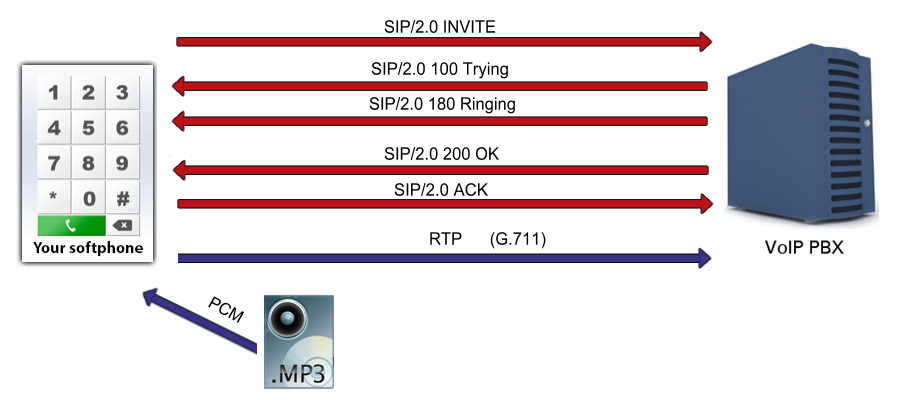
What is mp3 streamer used for during a SIP voice call? How does it work?
Streaming media is multimedia that is constantly received by and presented to an end-user while being delivered by a provider. An mp3 media player can begin playing the mp3 file's voice data before the entire file has been transmitted.
In the case of softphones, mp3 streamers are used to play mp3 files into calls, for example in the cases of IVRs (Interactive Voice Response), voicemails, auto-answerers etc. Basically, mp3 stream players work almost the same way as microphones, but the stream of audio data is being sent from an mp3 file instead from a microphone, which means mp3 streamers can be attached to calls with the correct mediasender object.
How to play mp3 file into call using c#?
Ozeki VoIP SIP SDK provides the MP3StreamPlayback class for the purpose to create
mp3 streamer objects, which are receiving the mp3 file's path and name as parameter, and
are able to be attached to the call with the correct media sender object. The user
only have to call the StartStreaming() method of the object, so
the mp3 streamer can begin the streaming.
Please note that, there are much more media handlers provided by the SDK, for example
you can even record calls to mp3 files, or play - and record - wav files as well.
Mp3 file streaming into call example in C#
using System;
using Ozeki.Media;
using Ozeki.VoIP;

namespace Play_MP3_Into_Call
{
    class Program
    {
        static ISoftPhone softphone;   // softphone object
        static IPhoneLine phoneLine;   // phoneline object
        static IPhoneCall call;
        static MediaConnector connector;
        static PhoneCallAudioSender mediaSender;
        static MP3StreamPlayback mp3Player;

        private static void Main(string[] args)
        {
            // Create a softphone object with RTP port range 5000-10000
            softphone = SoftPhoneFactory.CreateSoftPhone(5000, 10000);

            // SIP account registration data, (supplied by your VoIP service provider)
            var registrationRequired = true;
            var userName = "858";
            var displayName = "858";
            var authenticationId = "858";
            var registerPassword = "858";
            var domainHost = "192.168.115.100";
            var domainPort = 5060;

            var account = new SIPAccount(registrationRequired, displayName, userName, authenticationId, registerPassword, domainHost, domainPort);

            // Send SIP regitration request
            RegisterAccount(account);

            mp3Player = new MP3StreamPlayback("helloworld.mp3");
            mediaSender = new PhoneCallAudioSender();
            connector = new MediaConnector();

            // Prevents the termination of the application
            Console.ReadLine();
        }

        static void RegisterAccount(SIPAccount account)
        {
            try
            {
                phoneLine = softphone.CreatePhoneLine(account);
                phoneLine.RegistrationStateChanged += line_RegStateChanged;
                softphone.RegisterPhoneLine(phoneLine);
            }
            catch (Exception ex)
            {
                Console.WriteLine("Error during SIP registration: " + ex);
            }
        }

        static void line_RegStateChanged(object sender, RegistrationStateChangedArgs e)
        {
            if (e.State == RegState.NotRegistered || e.State == RegState.Error)
                Console.WriteLine("Registration failed!");

            if (e.State == RegState.RegistrationSucceeded)
            {
                Console.WriteLine("Registration succeeded - Online!");
                CreateCall();
            }
        }

        private static void CreateCall()
        {
            var numberToDial = "853";
            call = softphone.CreateCallObject(phoneLine, numberToDial);
            call.CallStateChanged += call_CallStateChanged;
            call.Start();
        }

        static void SetupMp3Player()
        {
            connector.Connect(mp3Player, mediaSender);
            mediaSender.AttachToCall(call);

            mp3Player.Start();

            Console.WriteLine("The mp3 player is streaming.");
        }

        static void call_CallStateChanged(object sender, CallStateChangedArgs e)
        {
            Console.WriteLine("Call state: {0}.", e.State);

            if (e.State == CallState.Answered)
                SetupMp3Player();
        }
    }
}
Communication throught the network
When the call has been accepted by the called party, the softphone is ready to stream the given mp3 file into the call through the UDP network as RTP packages. This example also writes to the console that the mp3 streamer has started to stream the file.
Step1: the application notifies the user about the beginning of the streaming
The mp3 player is streaming.
Step 2: the mp3 is being sent to the destination as RTP packages (a sample package)
[Stream setup by SDP (frame 28)]
10.. .... = Version: RFC 1889 Version (2)
..0. .... = Padding: False
...0 .... = Extension: False
.... 0000 = Contributing source identifiers count: 0
1... .... = Marker: True
Payload type: ITU-T G.711 PCMU (0)
Sequence number: 7133
[Extended sequence number: 72669]
Timestamp: 85000
Synchronization Source identifier: 0x712f7356 (1898935126)
Payload: d55555545657545756565455575051575650515557515050...