High performance VoIP SDK for .Net developers

VoIP SIP SDK

How to manage multiple phone calls at the same time

Explanation

Prerequisities

Download: MultiplePhoneCalls.zip

This guide explores how you can setup Ozeki VoIP SIP SDK for managing multiple phone calls professionally. Please find below the source codes for this functionality and their explanation to speed up your work.

Introduction

Telephoning nowadays is not only about calling somebody to tell some news but also a tool for making business calls. A company telephone line has to support more than one incoming call at the same time (Figure 1).
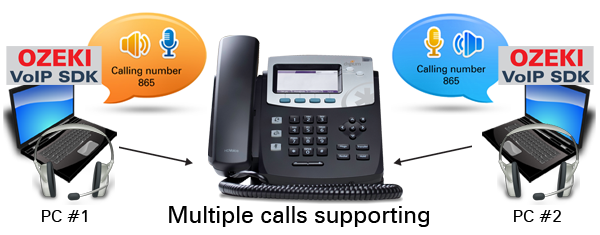
The support of multiple calls means that the telephone client can handle more than one call at the same time. This does not necessarily mean that the callee hears all the calls simultaneously but the calls are put into lines and the company telephone agent transfers the calls to other telephones within the company system. While the company telephone network seems to be a single telephone end-point from outside.


Figure 1 - Multiple phone calls

The following program code uses the background support of Ozeki VoIP SIP SDK, therefore you will need to download and install Ozeki SIP SDK on your computer before starting to use the program code. You will also need to have Visual Studio 2010 or compatible IDE and .NET Framework installed on your system, as the program code below is written in C# language.

Ozeki VoIP SIP SDK has an illustrious support for multiple calls, you only have to handle them. In this example program Code 1 includes the tools that are for this purpose. The sample program supports two simultaneous calls they are stored in call1 and call2. There are flags that indicate the number of the actual calls, the selected (active) call and the incoming call ID in case of an incoming call.

int selected_call = 0;
int incoming_call = 0;
IPhoneCall call1;
IPhoneCall call2;
int numberOfCalls = 0;

Code 1 - Extra tools for the multiple call support

The phone line registration in this example is the same as in case of any other softphones, the only change is in the call handling. Code 2 shows the method for the incoming call handling.

As the example handles 2 simultaneous call, if the number of calls exceeds 2, the incoming call will be automatically rejected. In other cases the incoming call will be signed to the first free call object and a user interaction will be waited (acceptance or reject).

private void softPhone_IncomingCall(object sender, VoIPEventArgs<IPhoneCall> e)
{
    if (numberOfCalls == 2)
    {
        e.Item.Reject();
    }
    InvokeGUIThread(() =>
    {
        RegistrationState.Text = "Incoming call";
        IncomingCallLb.Text = String.Format("from {0}", e.Item.DialInfo);
        if (call1 == null)
        {
            call1 = e.Item;
            WireUpCallEvents(call1);
            incoming_call = 1;
        }
        else if(call2 == null)
        {
            call2 = e.Item;
            WireUpCallEvents(call2);
            incoming_call = 2;
        }
        inComingCall = true;
    });
}

Code 2 - Handling the incoming call

The calls need to be subscribed for the basic cal events, in this case the state change and the error as the example program does not handle DTMF signals. Code 3 shows the methods that are basically the same as in case of other softphones. The only difference is that in this sample program these methods need an IPhoneCall parameter that indicates which phone call is used for subscription.

private void WireUpCallEvents(IPhoneCall call)
{
    call.CallStateChanged += new EventHandler<VoIPEventArgs<CallState>>(call_CallStateChanged);
    call.CallErrorOccured += new EventHandler<VoIPEventArgs<CallError>>(call_CallErrorOccured);
}

private void WireDownCallEvents(IPhoneCall call)
{
    if (call != null)
    {
        call.CallStateChanged -= (call_CallStateChanged); ;
        call.CallErrorOccured -= (call_CallErrorOccured);
    }
}

Code 3 - Call events

The phone state handling is similar to the other cases, it only differs in the fact that you need to handle the active call instead of a single one. Code 4 shows the case of the established call (InCall state). This is the case when you need to initialize the peripherals and set the sender and receiver objects.

case CallState.InCall:
    microphone.Start();
    connector.Connect(microphone, mediaSender);
    speaker.Start();
    connector.Connect(mediaReceiver, speaker);
    mediaReceiver.Detach();
    mediaSender.Detach();
    if (selected_call == 1)
    {
        mediaSender.AttachToCall(call1);
        mediaReceiver.AttachToCall(call1);
    }
    else if (selected_call == 2)
    {
        mediaSender.AttachToCall(call2);
        mediaReceiver.AttachToCall(call2);
    }

    break;

Code 4 - Call state handling - InCall

Code 5 shows the handling of the completed call event. In this case the actual call ending is in the event handler of the Hang Up button, this method only calls that one and resets the media handlers if there are no more calls.

case CallState.Completed:
    InvokeGUIThread(() =>
    {
        HangUp.PerformClick();
    });
    if (numberOfCalls == 0)
    {
        speaker.Stop();
        microphone.Stop();
        connector.Disconnect(mediaReceiver, speaker);
        connector.Disconnect(microphone, mediaSender);
        mediaSender.Detach();
        mediaReceiver.Detach();
    }
    InvokeGUIThread(() =>
    {
        label8.Text = numberOfCalls.ToString();
    });
    InvokeGUIThread(() => { IncomingCallLb.Text = string.Empty; });
    break;

Code 5 - Call state handling - Completed

The user of the example softphone can start or accept a call with the Pick Up button. Code 6 shows the event handler for the button's Click event. The method seems difficult to understand but it is simpler than is seems.

In case of an incoming call the Pick Up button accepts the call. This is done by firstly specifying the call (call1 or call2) an then setting the proper call button that will indicate which call is the active one by using red as the text color.

In case of an outgoing call, the program chooses the first free call object to assign the outgoing call to it. In both cases if there was another call (previously active) it will be set to hold and the new (accepted incoming or started outgoing) call will be the active one.

private void PickUp_Click(object sender, EventArgs e)
{
    if (numberOfCalls == 2)
        return;

    if (inComingCall)
    {
        numberOfCalls++;
        inComingCall = false;
        if (incoming_call == 1)
        {
            selected_call = 1;
            call1.Accept();

            Call1Button.Enabled = true;
            Call1Button.ForeColor = Color.Red;
            if (call2 != null)
            {
                call2.Hold();
                Call2Button.ForeColor = Color.Black;
            }


        }
        else if (incoming_call == 2)
        {
            selected_call = 2;
            call2.Accept();

            Call2Button.Enabled = true;
            Call2Button.ForeColor = Color.Red;
            if (call1 != null)
            {
                call1.Hold();
                Call1Button.ForeColor = Color.Black;
            }

        }
        incoming_call = 0;
        return;
    }

    if (string.IsNullOrEmpty(DialedNumber.Text))
        return;

    if (phoneLineInformation != PhoneLineState.RegistrationSucceeded && phoneLineInformation != PhoneLineState.NoRegNeeded)
    {
        MessageBox.Show("Phone line state is not valid!");
        return;
    }
    if (selected_call == 1)
    {
        call1.Hold();
        Call1Button.ForeColor = Color.Black;
        call2 = softPhone.CreateCallObject(phoneLine, DialedNumber.Text);
        WireUpCallEvents(call2);
        selected_call = 2;
        numberOfCalls++;
        call2.Start();
        Call2Button.Enabled = true;
        Call2Button.ForeColor = Color.Red;
    }
    else
    {
        if (selected_call == 2)
        {
            call2.Hold();
            Call2Button.ForeColor = Color.Black;
        }
        call1 = softPhone.CreateCallObject(phoneLine, DialedNumber.Text);
        WireUpCallEvents(call1);
        selected_call = 1;
        numberOfCalls++;
        call1.Start();
        Call1Button.Enabled = true;
        Call1Button.ForeColor = Color.Red;
    }
}

Code 6 - Picking up the phone or starting an outgoing call

Code 7 contains the event handler method for the Hang Up button. This button ends an active call or rejects an incoming one. If there is another call except for the ended one, it will be the active one and will be set to InCall state again.

private void HangUp_Click(object sender, EventArgs e)
{
    if (incoming_call == 0)
    {

        if (selected_call == 1)
        {
            call1.HangUp();
            WireDownCallEvents(call1);
            call1 = null;
            Call1Button.ForeColor = Color.Black;
            Call1Button.Enabled = false;
            numberOfCalls--;
            if (call2 != null)
            {
                Call2Button.PerformClick();
                return;
            }


            if (numberOfCalls == 0)
                selected_call = 0;
        }
        else if (selected_call == 2)
        {
            call2.HangUp();
            WireDownCallEvents(call2);
            call2 = null;
            Call2Button.ForeColor = Color.Black;
            Call2Button.Enabled = false;
            numberOfCalls--;
            if (call1 != null)
            {
                Call1Button.PerformClick();
                return;
            }


            if (numberOfCalls == 0)
                selected_call = 0;
        }

    }
    else if (incoming_call == 1 && call1.CallState == CallState.Ringing)
        call1.Reject();
    else if (incoming_call == 2 && call2.CallState == CallState.Ringing)
        call2.Reject();
    inComingCall = false;
    incoming_call = 0;
    IncomingCallLb.Text = string.Empty;
    DialedNumber.Text = string.Empty;

}

Code 7 - Hanging up or cancelling a phone call

When the sample softphone has both simultaneous calls set, you can choose between the calls by using the call buttons. The active call is always the one those button text is red. Code 8 shows one of the call button event handler methods. The other is the sibling of this. It sets the button colors and sets the call assigned to the button the active one while the other call will be set to hold.

private void Call1Button_Click(object sender, EventArgs e)
{
    if (selected_call != 1)
    {
        if (call2 != null)
            call2.Hold();
        selected_call = 1;
        call1.Hold();
        mediaSender.AttachToCall(call1);
        mediaReceiver.AttachToCall(call1);
        InvokeGUIThread(() =>
        {
            Call1Button.ForeColor = Color.Red;
            Call2Button.ForeColor = Color.Black;
        });
    }
}

Code 8 - Choosing the active call

You can use more than two simultaneous calls with Ozeki VoIP SIP SDK, too. In that case you should use some kind of list for the calls but the basic concept is the same as in the case of this example program. Now you can use this knowledge to build your own solution with multiple call support.

This guide introduced you detailed information and sources for managing multiple phone calls and showed how Ozeki VoIP SIP SDK can help you to fulfill your goals. If you have read through this page carefully, you already have all the knowledge you need to start your own solution.

If you have any questions or need assistance, please contact us at info@voip-sip-sdk.com

Select a suitable Ozeki VoIP SIP SDK license for multiple call management on Pricing and licensing information page

Related Pages

Operating system: Windows 8, Windows 7, Vista, 200x, XP
Development environment: Visual Studio 2010 (Recommended), Visual Studio 2008, Visual Studio 2005
Programming language: C#.NET
Supported .NET framework: .NET Framework 4.5, .NET Framework 4.0, .NET Framework 3.5 SP1
Software development kit: OZEKI VoIP SIP SDK (Download)
VoIP connection: 1 SIP account
System memory: 512 MB+
Free disk space: 100 MB+