


How to setup Ozeki VoIP SIP SDK with PBXnSIP
This guide explains how you can connect Ozeki VoIP SIP SDK to your PBXnSIP server. All you need to do is to create an extension in PBXnSIP and Ozeki VoIP SIP SDK can use this extension to register to the PBX.
Voice Over IP is one of today's fastest growing technology. It makes it possible to create an advanced telephone application based on the existing network. VoIP technology is based on converting the voice into packets and transmits these packets towards the destination.
This page explains you how to connect Ozeki VoIP SIP SDK to your PBXnSIP server.
System architecture
If you follow the configuration steps of this guide, you will have a system that works as follows: First, you need to login to your PBXnSIP server using its web interface and create an extension. Ozeki VoIP SIP SDK will use this extension to register to the PBX. After registration you can start to reach your customers immediately. Figure 1 shows the overview of the system.
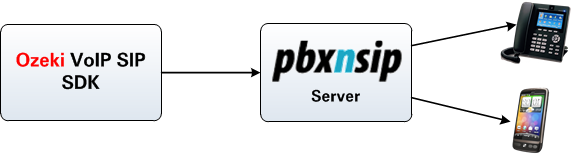
- Ozeki VoIP SIP SDK registers to PBXnSIP server.
- The outgoing call will be forwarded to PBXnSIP via the created extension.
- The destination phone will be ringing. The destination phone could be a VoIP phone, a land-line phone or a mobile phone.
Configuration steps
Before you start to configure this solution it is assumed that you have already installed PBXnSIP into your server.
Step 1.) Configure PBXnSIP
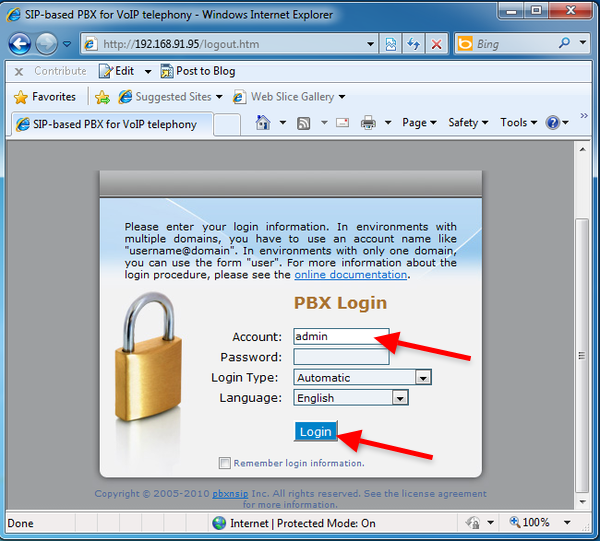
In this example I have installed PBXnSIP to a computer that has the following IP address: 192.168.91.95. Start a browser and navigate to its built-in web interface and login as administrator (Figure 2).
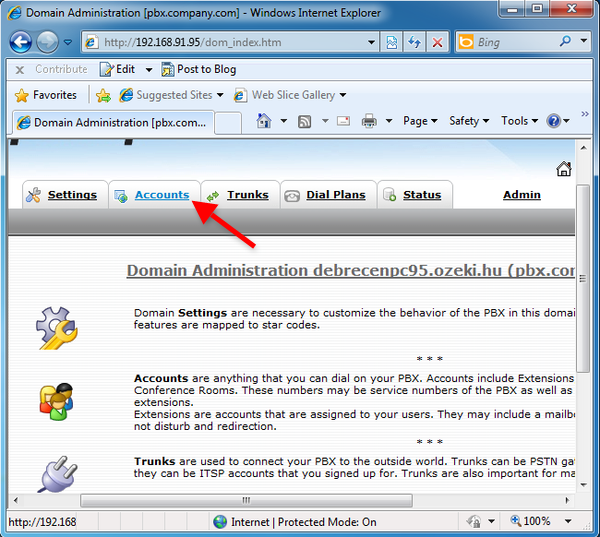
Once you logged in, click on Accounts (Figure 3)
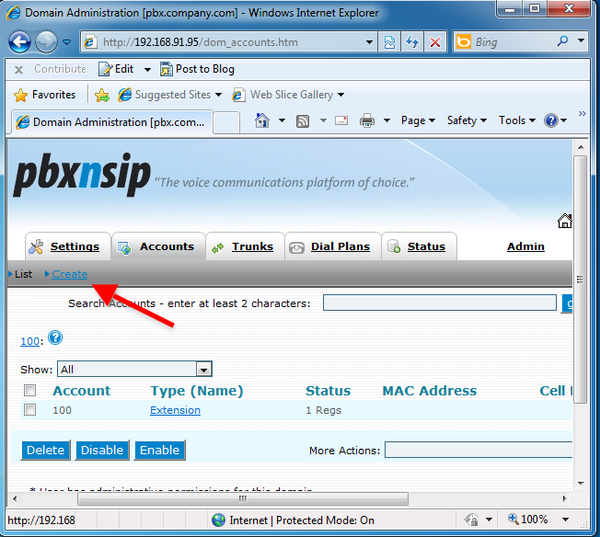
Here you can see the created Extensions. I have already registered an extension which name is 100. I will register a VoIP phone to this account. Click on Create to create a new extension (Figure 4).
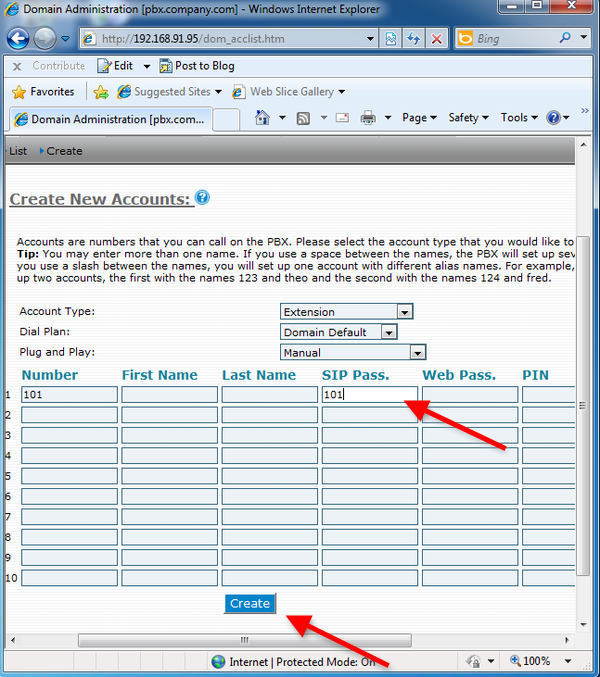
Here you can create new accounts. Provide a Number and a SIP Password and click on Create (Figure 5).
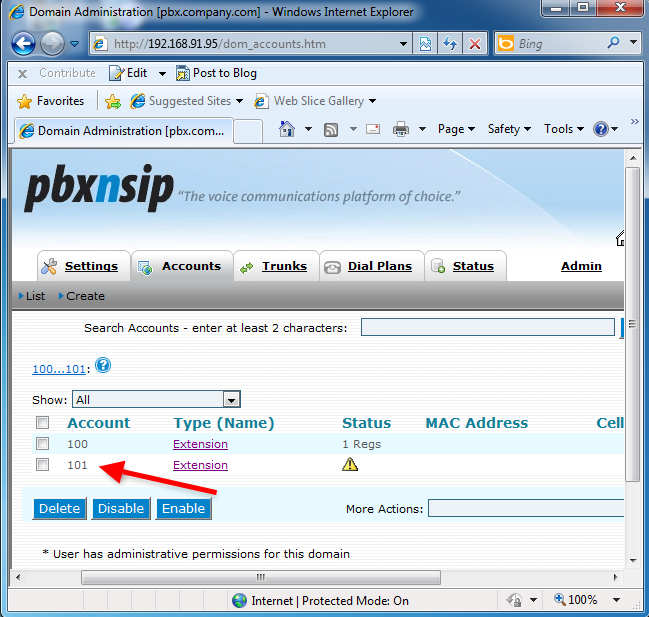
On Figure 6 you can see the created extension.
If you followed these steps, the configuration of PBXnSIP is done, and you can start to configure Ozeki VoIP SIP SDK.
Step 2.) Configure Ozeki VoIP SIP SDK
It is assumed that you have already downloaded Ozeki VoIP SIP SDK from the download page and installed it.
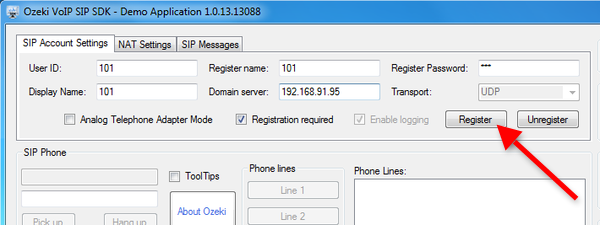
The SDK installation comes with a Demo Application. Start the Demo Application and provide the details of the created extension and click on Register (Figure 7).
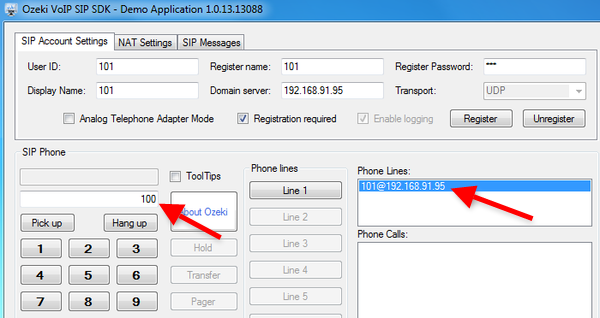
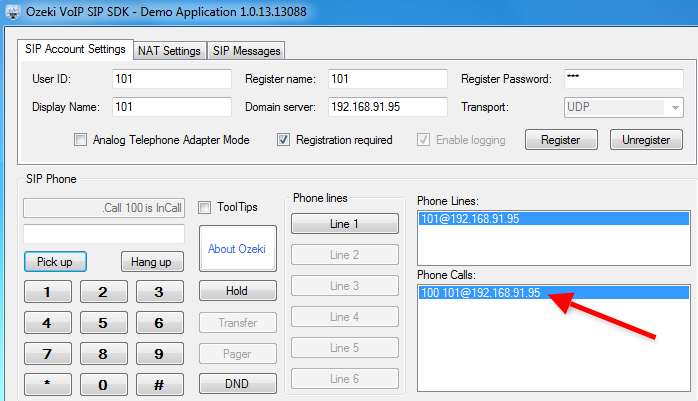
You can see the registered phone line at the Phone Lines section. Dial a number using the featured softphone of the Demo Application and click Pick up (Figure 8).
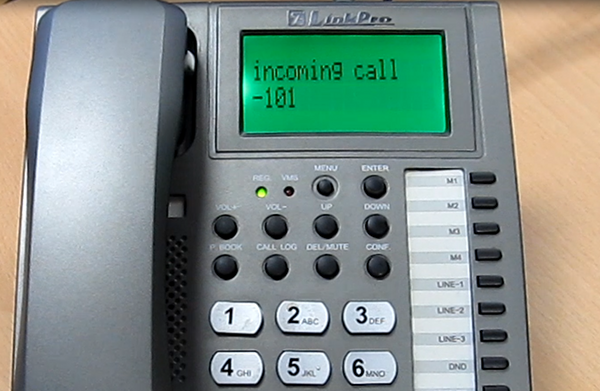
You can see there is an incoming call from Ozeki VoIP SIP SDK in the destination phone (Figure 9).
The phone call can be seen at Phone Calls section (Figure 10).
Conclusion
If you followed these steps you can start to build your own application with Ozeki VoIP SIP SDK and PBXnSIP.
If you have any questions contact us at: info@voip-sip-sdk.com.
More information
- How to setup Ozeki VoIP SIP SDK with Ozeki Phone System XE
- Cisco Unified Communications Manager
- How to setup Ozeki VoIP SIP SDK with Cisco Call Manager Express
- Asterisk pbx setup
- 3CX pbx setup
- AsteriskNow pbx setup
- Kamailio pbx setup
- FreeSwitch pbx setup
- OpenSIPS pbx setup
- Trixbox pbx setup
- OpenSER pbx setup
- PBXnSIP pbx setup
- How to setup Ozeki VoIP SIP SDK with PBXpress
- SipX ECS pbx setup
- Elastix pbx setup
- FreePBX pbx setup
- SwyxWare pbx setup
- Aastra MX-One pbx setup