Ozeki VoIP SDK - Product Guide
Developers Guide
How to register to a SIP PBX with Ozeki VoIP SIP SDK
Explanation
Prerequisities
![]() |
Download: | SoftphoneExample.zip |
This article will introduce the main concepts of the softphone and PBX connection and will show how easy it is to register your softphone application to a PBX when you use the Ozeki VoIP SIP SDK.
Introduction
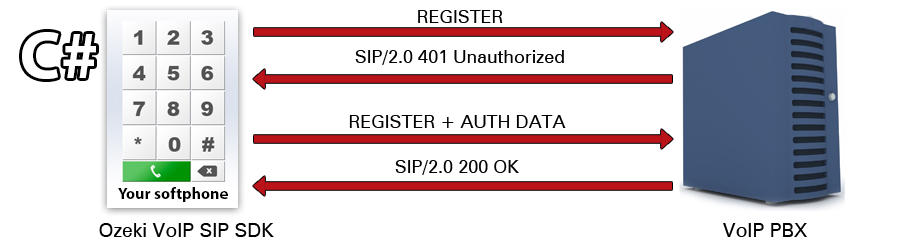
When you want to use a softphone application, you will need to access a Private Branch Exchange (PBX) system. A PBX can be a physical hardware or a software solution that provides the main concepts of making connections between softphones, and in special cases between VoIP phones and analog phones or cell phones, too (In this case they use the public switched telephone network (PSTN) for establishing the connection) as it can be seen in Figure 1.
Figure 1 - SIP registration dialog
The registration process starts with a registration request from the softphone. The request has a specific PDU (protocol data unit) that specifies the registration data. The PBX first returns an unauthorized message with the requested registration information that will be re-sent in a new registration request from the softphone. The second registration request will be authorized as it contains the requested data and the registration succeeds.
Figure 2 shows a simple example for a registration PDU. The order of the data can be changed except for the first line. The first line contains the identifier of the message type that is in case of a registration message REGISTER, then comes the IP address of the PBX and the SIP ID.
The following data define the sender and the addressee of the message identified by SIP accounts, the call ID, the call sequence number, the contact information, support information, expiration time, the allowed message types the maximum number of message forwards and the length of the message. In case of the second registration call the authentication information is also part of the PDU.
Figure 2 - A simple example for a PBX registration PDU without authentication info
You do not have to have your own PBX for using softphones, as there are online providers, who can give you PBX access that you can use. Make sure you got all the needed information from your provider to access the PBX. If you read through this article carefully, you will know exactly what kind of information you need.
This article uses the knowledge of programming a C# softphone with the support of Ozeki VoIP SIP SDK. For getting some basic information, please first read the Ozeki VoIP SIP softphone page.
For understanding this article, you will need basic C# programming knowledge. You will see that using Ozeki VoIP SIP SDK, you only need to call the provided methods and set some parameters to make your softphone work.
You will need the exceptional support that Ozeki VoIP SIP SDK provides
To get all the exceptionally great support Ozeki VoIP SIP SDK grants, you have to register the Ozeki SIP SDK to your Visual Studio project.
You will need to use the References label on the Solution Explorer panel that is on the upper right side of the Visual Studio window. If you right click on the label, a new list will appear where you should choose Add Reference... (Figure 3).
Figure 3 - You can register Ozeki VoIP SIP SDK to your project on the
Solution Explorer panel
After choosing Add Reference... from the list, Add Reference pop-up window will appear where you can choose the Ozeki VoIP SIP SDK .dll file to register (Figure 4).
Figure 4 - You can browse your file system to find the VoIPSDK.dll file to register
If you installed your Ozeki VoIP SIP SDK without interaction, your .dll file will be in the "C:\Program Files\Ozeki\VoIP SIP SDK\SDK\" folder.
After registering your SDK, you can start the programming phase. First, you will need to have a GUI (graphical user interface) to operate with. You can check how to create the GUI in the Ozeki VoIP SIP Softphone article.
You should add some useful line to the using section
The using section is a very useful part of a C# program, as it provides the possibility of using names of objects from other namespaces without labeling them with the namespace information.
When creating a Windows Forms application, the Visual Studio itself puts some using lines into the code. You only have to append the SDK specific using instructions after the existing ones (Code 1).
using System; using System.Collections.Generic; using System.ComponentModel; using System.Data; using System.Drawing; using System.Linq; using System.Text; using System.Windows.Forms; using Ozeki.Media; using Ozeki.Media.MediaHandlers; using Ozeki.Network.Nat; using Ozeki.VoIP; using Ozeki.VoIP.Media; using Ozeki.VoIP.SDK; using Ozeki.Media.MediaHandlers.Facade; using Ozeki.Common;
Code 1 - With using instructions you can avoid namespace problems
It is really helpful to have these lines as for example without the "using Ozeki.VoIP.SDK;" line we have to refer to the "SoftPhoneFactory" name as "Ozeki.VoIP.SDK.SoftPhoneFactory", while with this single line added to the using section, we simply can use the name "SoftPhoneFactory", and the system will find the object definition for it.
You will need to use some fields in your program
There are some tools you will use in your softphone programs and you will have to define them as fields in your C# class. These fields are shown in Code 2.
The following list shows what these fields are for.
- softPhone:
It is an instance of the ISoftPhone interface provided by the Ozeki VoIP SIP SDK. It represents a softphone entity, and has the main methods for changing the NAT settings, signing to the incoming call events and registering to the PBX.
- phoneLine
It is a field that represents a phone line object that is an instance of the IPhoneLine interface of the Ozeki VoIP SIP SDK. It has the methods for registering a SIP account and signing to the phone line state changing events.
- phoneLineInformation
It is an object that holds the information about the state of the phone line. It is an Enum type object provided by the Ozeki VoIP SIP SDK.
The PhoneLineState Enum provides the following values:
- Initialized
- RegistrationRequested
- RegistrationSucceded
- RegistrationFailed
- RegistrationTimedOut
- UnregRequested
- UnregSucceded
- UnregFailed
- NoRegNeeded
We can check this state information field to know about the phone line state, as it is essential to have a successful registration of the line for starting a call.
- call
It is an IPhoneCall object that represents a phone call in your softphone. Ozeki VoIP SIP SDK supports multiple phone calls simultaneously but in this example, one call will be enough to understand the basic concepts.
- inComingCall
This is a logical flag that is to inform the softphone about an incoming call.
ISoftPhone softPhone; IPhoneLine phoneLine; PhoneLineState phoneLineInformation; IPhoneCall call; ... bool inComingCall;
Code 2 - You have to define some essential fields for your softphone
Now, you have the necessary fields to initiate the softphone, so you can take a step forward.
The SoftPhoneFactory will grant you a SoftPhone object
First of all, you have to initialize the softPhone object. Ozeki VoIP SIP SDK contains a class called SoftPhoneFactory that can provide you an instance of a softphone. You only have to add some essential information as parameters (Code 3).
The CreateSoftPhone method requires the IP address of the device on which your softphone runs. This information can be checked with the SoftPhoneFactory.GetLocalIP() method.
You will also need to add three port numbers to the CreateSoftPhone method. These are the start and end port numbers of the range your softphone will use for communication, and the last one is the port number on which the softphone listens the incoming calls.
Note that the port numbers in Code 3 are examples; you will need to set these parameters according to your own network settings.
softPhone = SoftPhoneFactory.CreateSoftPhone(SoftPhoneFactory.GetLocalIP(), 5700, 5750, 5700);
Code 3 - You will need some network information to set for the softphone
You have to make sure that your softphone will be able to communicate with other softphones and devices outside your local network. For this purpose, you will have to change some NAT (network address translation) settings.
The NAT settings have to be set properly
The network address translation system generates a public IP address of the network nodes that originally have only a local IP. When communicating with a node outside the local network, the NAT ensures that the namespaces will reach the right node.
When you build a softphone application, you have to consider the NAT settings to ensure the communication. You will need to check your network settings to be able to set the proper one.
Code 4 shows the NAT Traversal definition you will need to set when creating a phone line later.
Ozeki VoIP SIP SDK supports the following standard NAT traversal method types:
- NONE
In this case the softphone will not use any NAT traversal policy. This means that the softphone will not be able to communicate with other devices that are not in the same local network.
- STUN
Session Traversal Utilities for NAT is a simple traversal method that requires a STUN Server to work. It does not work properly with symmetric NAT settings though.
- TURN
Traversal Using Relays around NAT is a traversal method that is capable of the same operations as the STUN but without the symmetric NAT problem.
- ICE
Interactive Connectivity Establishment is a NAT traversal method that can operate properly even with networks behind firewalls and NAT.
new NatConfiguration(NatTraversalMethod.None)
Code 4 - Make sure you have the right NAT settings to be able to communicate
When you have your NAT traversal method set, you can sign your softphone to the EventHandler for incoming calls.
The softphone has to notice an incoming call
In order to get a notification about an incoming call, the softphone has to be attached to an EventHandler that listens the incoming call events (Code 5).
softPhone.IncommingCall += new EventHandler<VoIPEventArgs<IPhoneCall>>(softPhone_IncomingCall);
Code 5 - You have to attach your softphone to the EventHandler for incoming calls
The EventHandler method for an incoming call is the private softPhone_IncomingCall method that you should write. Ozeki VoIP SIP SDK provides a support for this purpose too, so the method is not too difficult (Code 6).
private void softPhone_IncomingCall(object sender, VoIPEventArgs<IPhoneCall> e)
{
InvokeGUIThread(() =>
{
label1.Text = "Incoming call ";
textBox1.Text += String.Format("from {0}", e.Item.DialInfo);
call = e.Item;
WireUpCallEvents();
inComingCall = true;
});
}
Code 6 - You have to write the EventHandler method for incoming calls
After setting the listener of the incoming calls, you will need to create a phone line.
You will need a SIP account to have a phone line
Code 7 shows how to initiate a phone line for your softphone. The CreatePhoneLine method requires a SIP account as a parameter. The SIP settings are given to you from your PBX provider.
The first parameter of the SIPAccount constructor is a logical variable that
shows if there is a need for registration.
It depends on your device settings if your network will need registration. Contact your
PBX provider to get this information.
The next parameters of the constructor are the displayed name, the user name, the register name, the register password, the domain server IP and the domain server port you use.
Note that the parameters in Code 7 are examples; you have to use your own settings given by your PBX provider to have your softphone work properly.
phoneLine = softPhone.CreatePhoneLine(new SIPAccount(true, "oz876", "oz876", "oz876", "oz876", "192.168.112.100", 5060), new NatConfiguration(NatTraversalMethod.None));
Code 7 - You have to set your SIP account to create a phone line
When you have a phone line, you will need to know if the line state changes.
The phone line needs to notice a state change
If you attach the phoneLine object to an EventHandler that listens the line state changes, you will be able to notice some essential events such as the registration info (Code 8).
phoneLine.PhoneLineStateChanged += new EventHandler<VoIPEventArgs<PhoneLineState>>(phoneLine_PhoneLineInformation);
Code 8 - You need to attach the phoneLine to the EventHandler for phone line state changes
The EventHandler method is simple to write with the support of the Ozeki VoIP SIP SDK, as it is seen in Code 9.
The phoneLine_PhoneLineInformation method starts a background thread that listens the state changes and notifies the phoneLine object about the change.
private void phoneLine_PhoneLineInformation(object sender, VoIPEventArgs<PhoneLineState> e)
{
phoneLineInformation = e.Item;
InvokeGUIThread(() =>
{
label2.Text = ((IPhoneLine)sender).SIPAccount.RegisterName;
if (e.Item == PhoneLineState.RegistrationSucceeded)
{
label3.Text = "Registration succeeded";
label1.Text = "Online";
}
else
label1.Text = e.Item.ToString();
});
}
Code 9 - Writing an EventHandler method for line state changes is easy with Ozeki VoIP SIP SDK support
Finally, you have all the settings made to be able to register your softphone to the PBX. There is only one step left.
The final step is to register the softphone to the PBX
Registering your softphone to the PBX is one of the easiest tasks, as Ozeki VoIP SIP SDK provides the background methods for that purpose. You only have to call the RegisterPhoneLine method and give the primarily set phoneLine object to it as parameter.
softPhone.RegisterPhoneLine(phoneLine);
Code 10 - Registering to the PBX is only one line after the settings
Your softphone is now registered to the PBX and it will work properly if you used the correct data your PBX provider gave to you. Now, you will need to make sure that your softphone will handle the exceptions too.
Always expect the unexpectable
You always have to be prepared for any problems that can occur during run time. The best solution is to write an exception handler block for this purpose (Code 11).
You can specify what should happen if some settings are wrong. This solution in Code 11 creates a pop-up window with an error message to inform the user about the problem.
catch (Exception ex)
{
MessageBox.Show(String.Format("You didn't give your local IP address, so the program won't run properly.\n {0}", ex.Message), string.Empty, MessageBoxButtons.OK,
MessageBoxIcon.Error);
...
Code 11 - You always have to handle exceptions
Now you are fully capable of registering a softphone to a PBX, you can take a step further and explore the other exceptionally great functions of the Ozeki VoIP SIP SDK.
Further development possibilities
This sample program is only for handling one telephone line. However, Ozeki VoIP SIP SDK offers the opportunity to develop and handle multiple telephone lines simultaneously. Moreover further functions can also be implemented effectively like call forwarding and chat function.
Summary
This article has shown how you can connect your softphone application to your PBX when you use Ozeki VoIP SIP SDK. If you read the page carefully, you are now familiar with all options you can use for setting the correct data for your connection.
Now you can see that working with Ozeki VoIP SIP SDK is the easiest way to get your own softphone solution, as it provides all the support you need for any type of network settings.
If you are interested in more Ozeki solutions, check the related pages section for further articles.
You can select an Ozeki VoIP SIP SDK license for your project on Licensing page.
If you have any questions or need assistance, please contact us at info@voip-sip-sdk.com
Related Pages
- How to build a softphone
- For integrating Ozeki VoIP SIP SDK, please check the Quick start guide
- To follow the whole softphone programming process with Ozeki VoIP SIP SDK, please visit Ozeki VoIP SIP Softphone pages
- Download Ozeki VoIP SIP SDK form the download page
- For further examples using Ozeki VoIP SIP SDK, visit the SIP voice applications site
| Operating system: | Windows 8, Windows 7, Vista, 200x, XP |
| Development environment: | Visual Studio 2010 (Recommended), Visual Studio 2008, Visual Studio 2005 |
| Programming language: | C#.NET |
| Supported .NET framework: | .NET Framework 4.5, .NET Framework 4.0, .NET Framework 3.5 SP1 |
| Software development kit: | OZEKI VoIP SIP SDK (Download) |
| VoIP connection: | 1 SIP account |
| System memory: | 512 MB+ |
| Free disk space: | 100 MB+ |
INTERMEDIATE
VoIP technology walkthrough
Softphone development
Webphone development
Mobile development
Voice recording
GETTING AROUND
Sitemap
Search the manual
API documentation
FAQ
Appendix